
First, the one thing to know
KoeShot works in English and Japanese, and it follows your Mac's language. On a Mac set to English, the menus, the settings, the help and the words you say to it are all in English.
To use KoeShot in a different language from the rest of your Mac, open KoeShot's settings, go to the “About” tab, and click “Change in System Settings…” under “Language”. You speak to KoeShot in the language it is set to.
What KoeShot is
KoeShot is an app for the Mac that captures the screen when you say what you want. It sits in the menu bar. You press the hotkey, speak, and it takes the shot or starts recording.
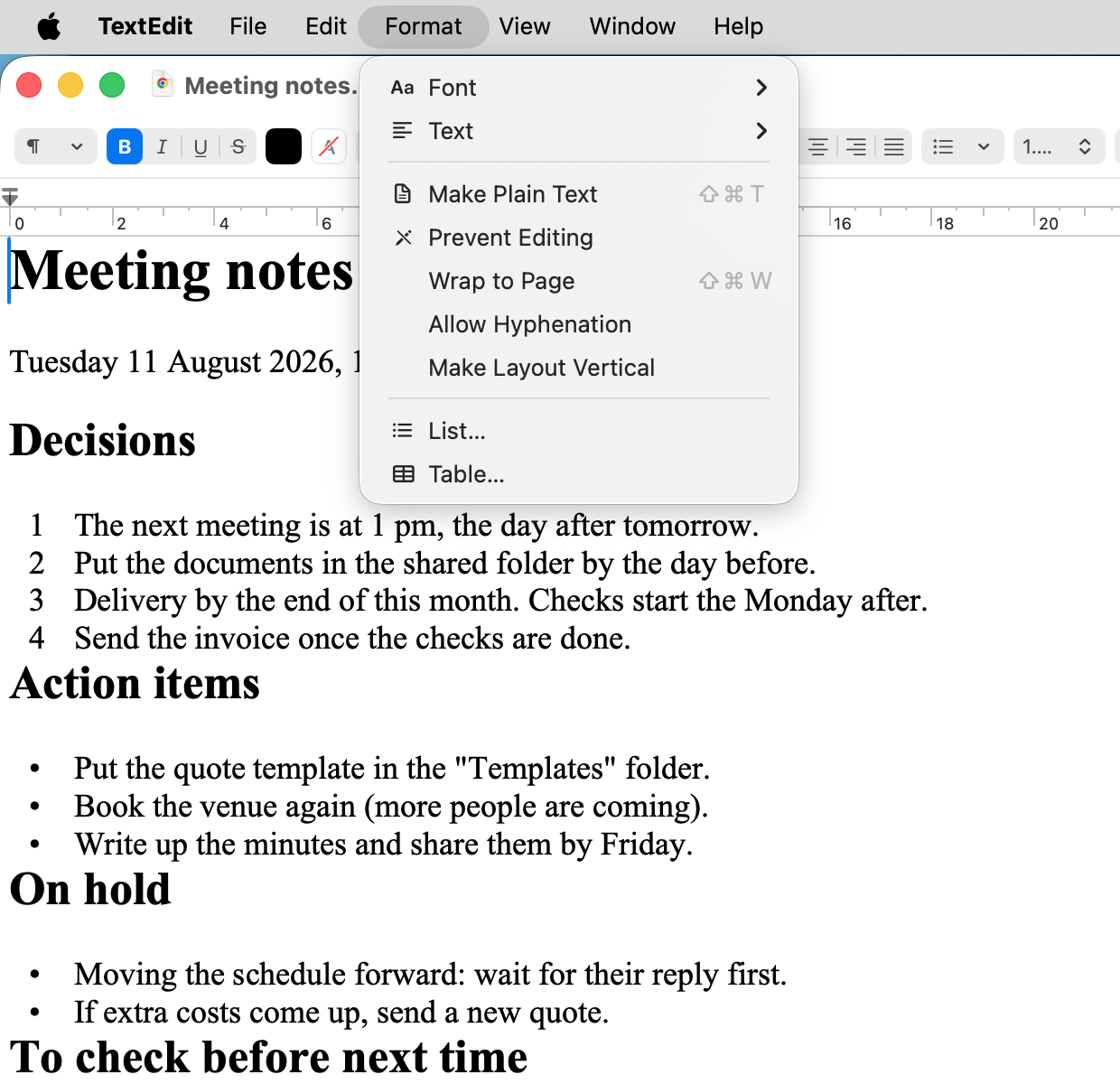
Because you never touch the mouse, a menu you have opened stays open. Say “Take a screenshot of the whole screen” and the open menu is still in the picture.
What you can say
Press Option + S, then say one of these. They are the phrases KoeShot shows in its own menu, and the ones we have checked. Other ways of saying the same thing often work too.
| “Take a screenshot of this app.” | Captures the app that is in front. |
|---|---|
| “Take a screenshot of the whole screen.” | Captures the whole screen, including any menu you have left open. |
| “Take a screenshot of the left display.” | Captures one display. The middle one, the right one and the main one work the same way. |
| “Take a screenshot of Safari.” | Captures a window by naming the app. |
| “Take a screenshot of the Downloads folder in Finder.” | Captures one particular window of an app by its title. Part of the title is enough. |
| “Let me select an area.” | Drag a box around the part you need, the way Shift + Command + 4 does. |
| “Take a screenshot in five seconds.” | Waits, then captures. |
| “Screenshot the error message.” | Captures a dialog, cropped to its edges. |
| “Scroll and capture this window.” | Scrolls the window and joins the screens into one tall image. See the note below for what this needs. |
| “Blur personal information and take a screenshot.” | Looks for personal details, blurs them, and shows you the result before anything is saved. |
| “Take a screenshot and name it.” | Names the file from what is on the screen. Needs Apple Intelligence. The words it adds to the file name are in Japanese. |
| “Take a screenshot of Safari and paste it.” | Captures and pastes it straight into another app. You choose where in the settings. |
| “Copy the text on the screen.” | Copies the text that is on the screen. The whole screen or an area you choose. |
| “Take a screenshot and pin it.” | Leaves the shot floating on top of your screen. Double-click to enlarge it, Esc to close it. |
| “Close the pins.” | Closes every shot you have pinned. |
| “Take a screenshot and mark it up.” | Opens the shot on your iPad so you can mark it up with Apple Pencil. Without an iPad nearby, you can mark it up on your Mac. |
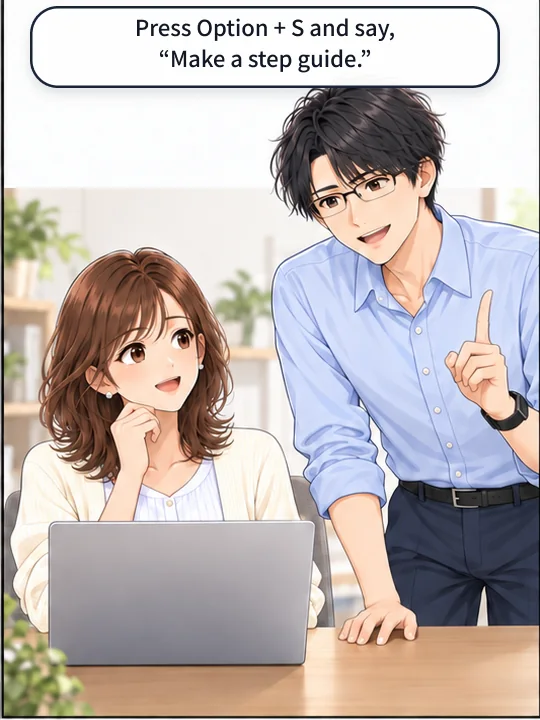
| “Make a step guide.” | Captures every click you make and writes them up with numbers and captions. Finish with Option + S or from the menu. |
| “Extract the slides.” | Saves only the slides from a video. In a browser it picks the faster way on its own. End it with Option + S or from the menu. |
| “Find the screenshot with the error.” | Searches the shots you have already taken by the words inside them. The index has to be turned on. |
| “Record the whole screen.” | Starts a screen recording. Stop it with Option + S or from the menu. |
| “Record part of the screen.” | Drag around an area to record only that part. |
| “Record with narration.” | Records the screen with your own voice as well. |
Can’t speak out loud? Type the same command instead (Silent Mode).
You can also choose KoeShot from AI features that control your Mac (Computer Use). In Settings, go to “General” → “AI Control”. It is off by default.
The basics
The things worth knowing before you buy, in one place.
- What it does
- You say what you want, and it takes the screenshot or the screen recording on your Mac.
- Language
- English or Japanese. KoeShot follows your Mac's language, and you speak to it in that language.
- Requirements
- System requirements: a Mac with Apple silicon (M1 or later) / macOS 26 or later. Intel-based Macs and macOS 15 (Sequoia) or earlier are not supported. macOS running inside a virtual machine (Parallels Desktop, UTM and the like) is not supported.
- Price
- ¥3,980 including tax, paid once. There is no monthly fee and no recurring charge.
- Free for 14 days
- For 14 days after you install it you can use the app on its own, with no license key. Nothing is charged before you buy.
- Your data
- Listening to your voice, working out what you asked for, and handling the screenshots and the text on screen all happen on your Mac. None of it is sent to our servers.
- Sold by
- Wada Digital Lab
You don’t need to remember the keys
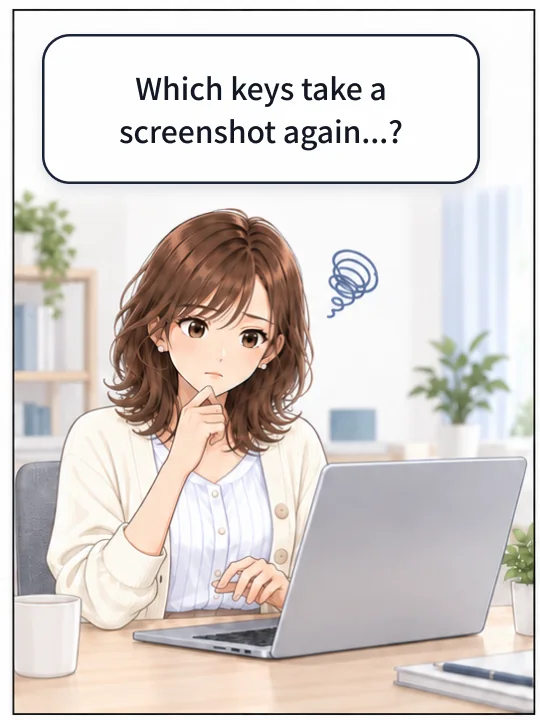
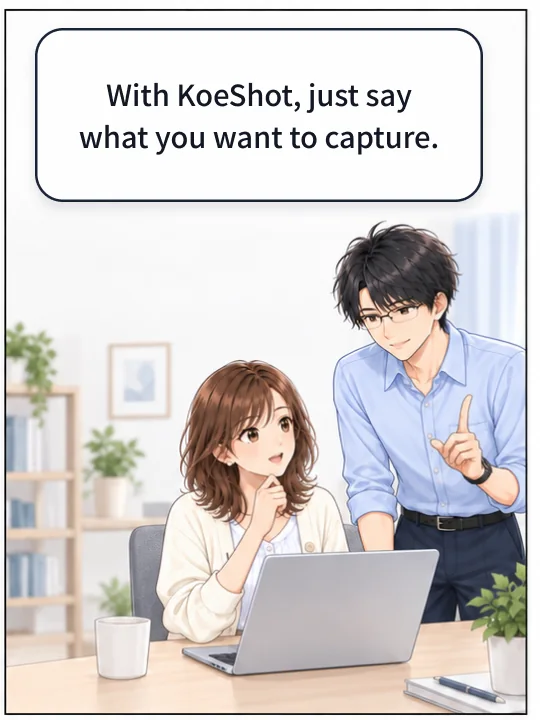
Instead of trying to recall the screenshot keys, press Option + S and say what you want to capture.
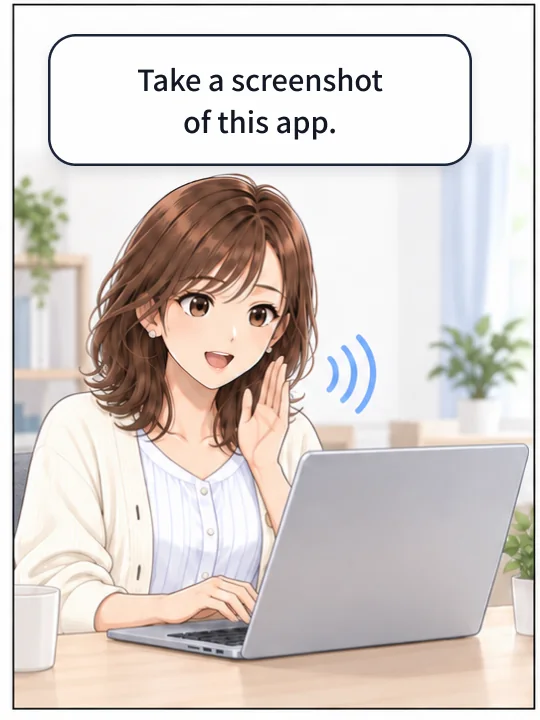
Just say “Take a screenshot of this app.”
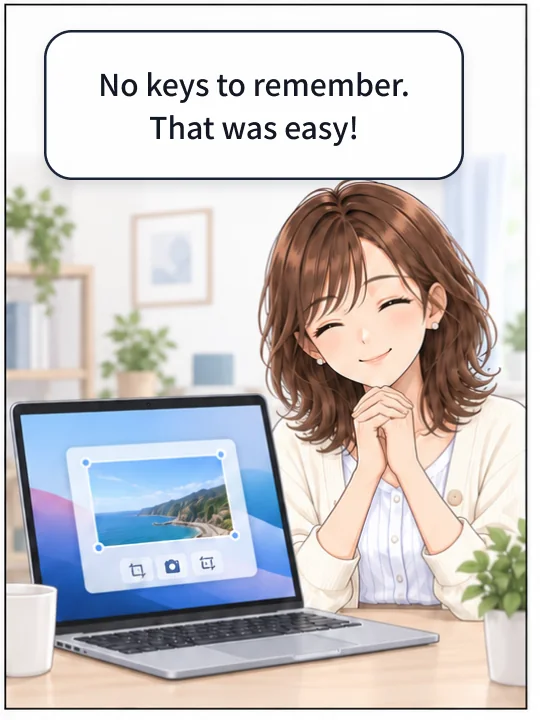
Misaki and Naoki, the two characters in these comics, walk through it in four panels.
Swipe sideways to see the next panels.
Your hands stay where they are
An open menu closes the moment you click anywhere else with the mouse.
KoeShot captures when you press the hotkey (Option + S) and speak. The shot also goes to the clipboard, so you can paste it into a chat or a document with Command + V straight away. To capture a menu you have opened, say “Take a screenshot of the whole screen.”
Does any of this sound familiar?
A page too long for one screen
Say “Scroll and capture this window.” KoeShot scrolls while it captures, then joins the screens into one tall image.
Swipe sideways to see the next panels.
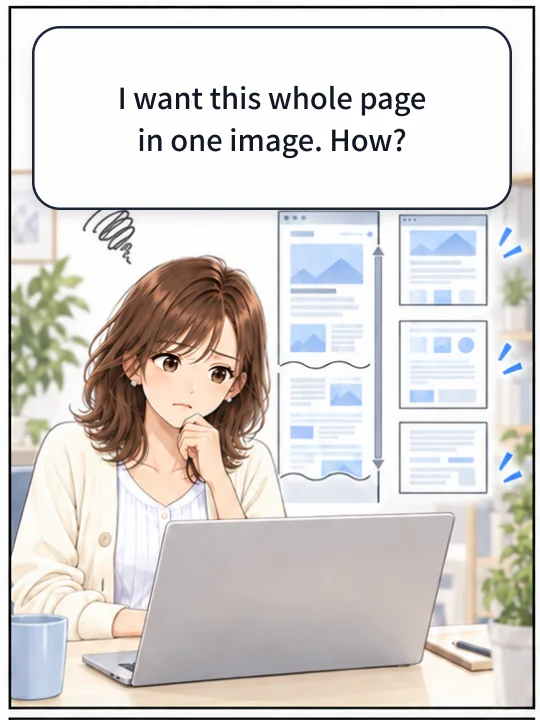
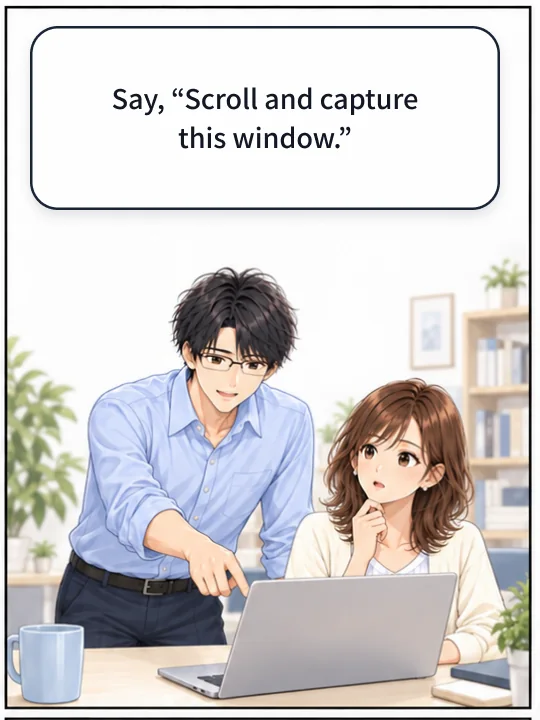
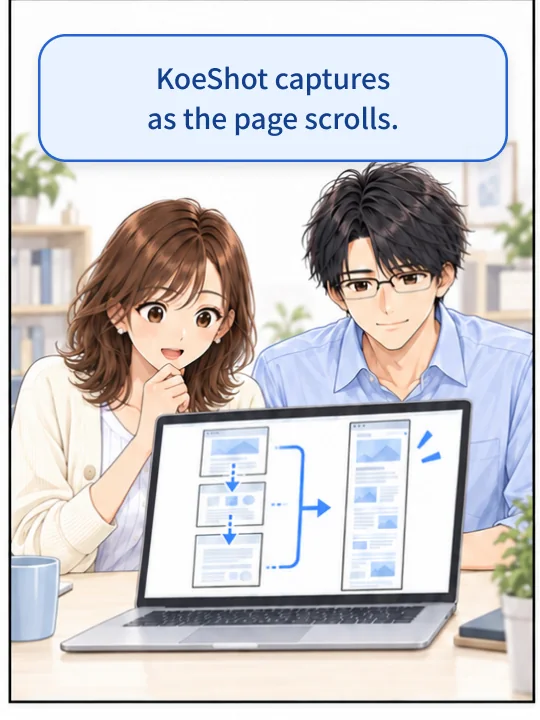
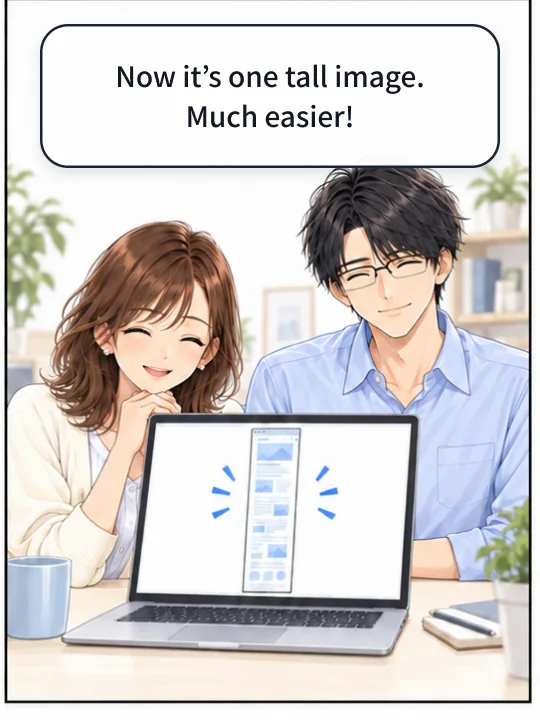
Capturing a whole web page works in Safari and Chrome-based browsers. The first time, you have to turn on a setting in the browser. Depending on that setting and on how the page is built, it may capture only what is on screen. Very long pages are cut off where the capture ends. In apps other than browsers, the same phrase captures the scrolling part of the front window. That one needs Accessibility permission.
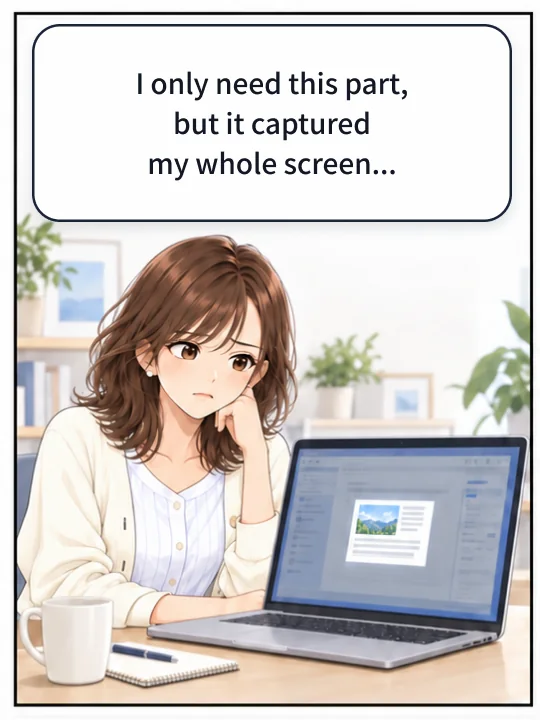
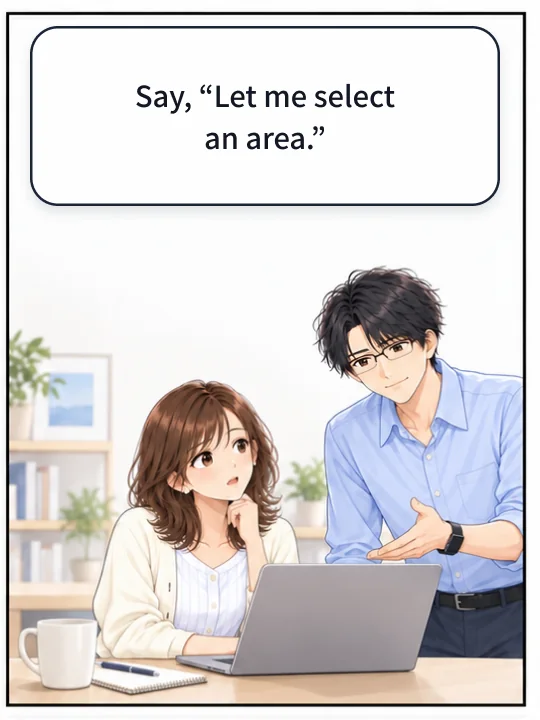
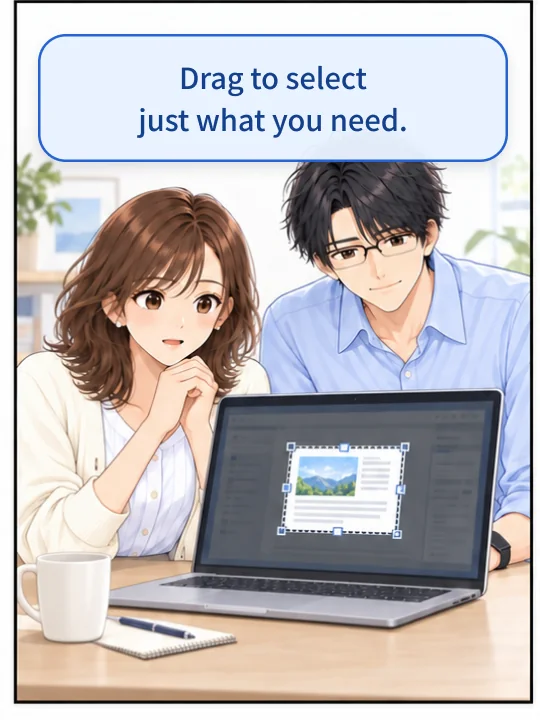
Only part of the screen is worth keeping
Say “Let me select an area.” Then drag the crosshair around the part you need.
Swipe sideways to see the next panels.
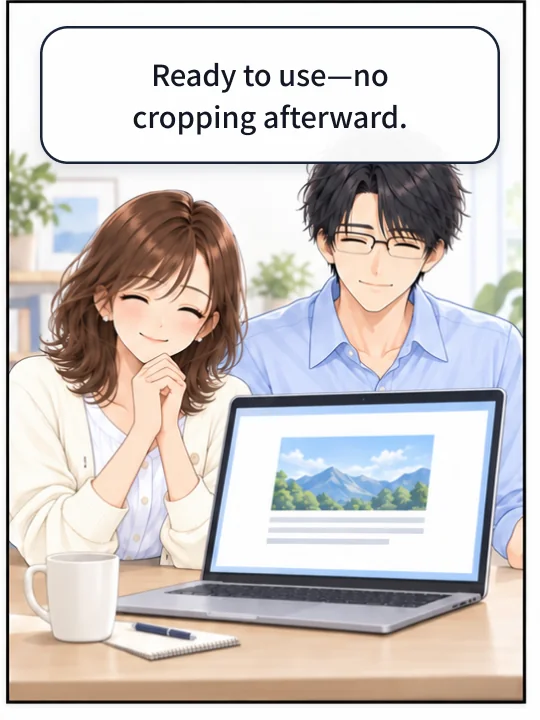
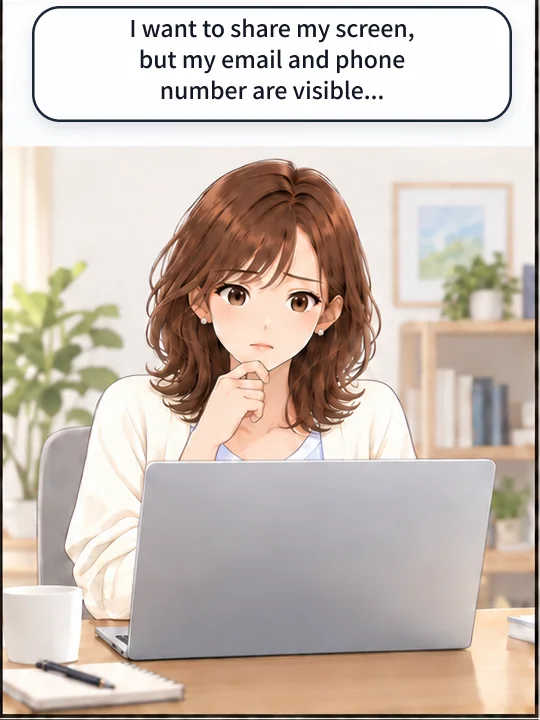
The screen has someone's details on it
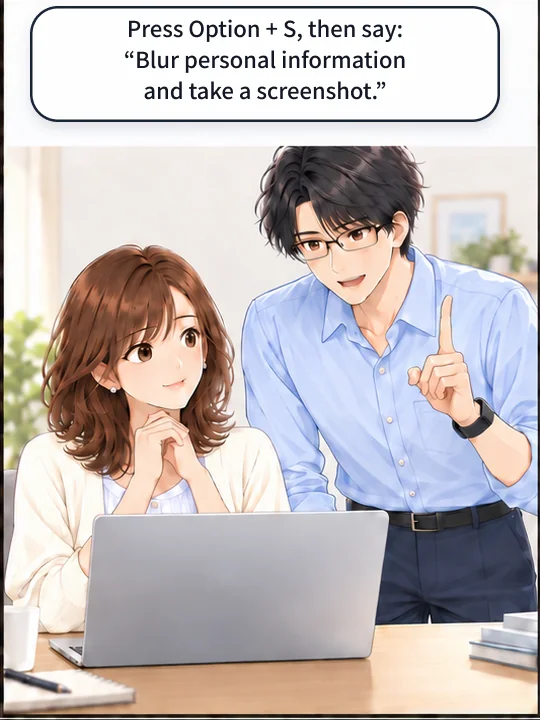
Say “Blur personal information and take a screenshot.” KoeShot looks for personal details on your Mac, and shows you what it found before anything is saved. You can add a blur it missed, or take one off.
Swipe sideways to see the next panels.
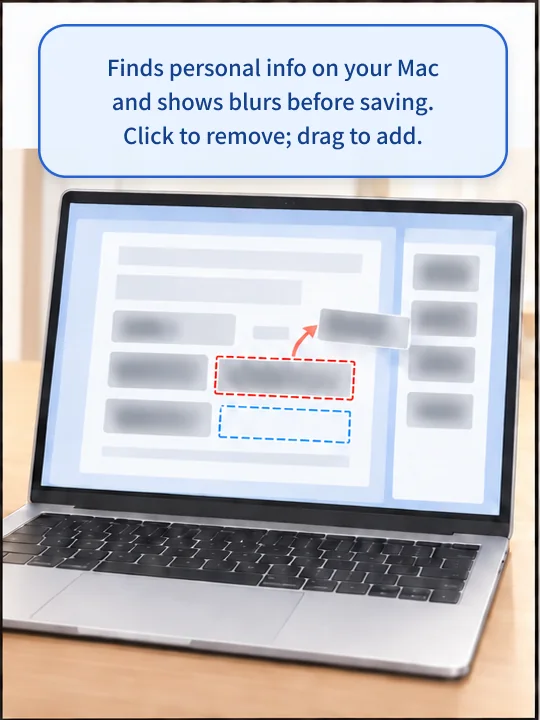
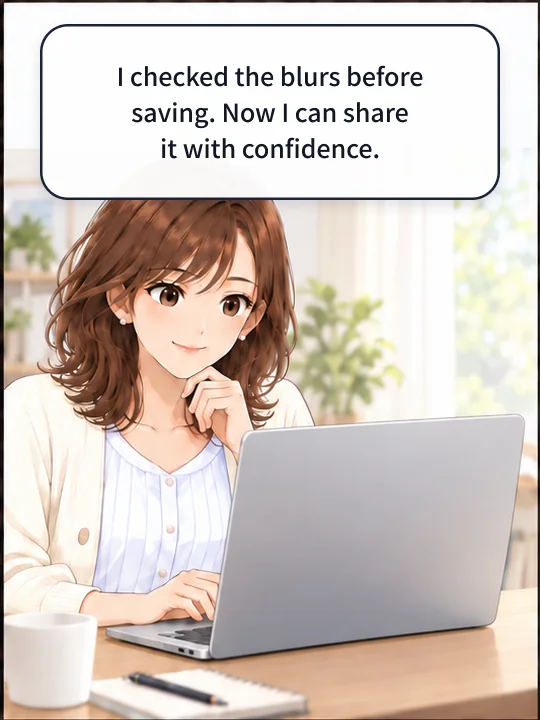
It finds them automatically, so it is not perfect. It can miss things, and it can cover things that did not need covering. It cannot find ID numbers (such as a national ID, a driver’s license number or a health insurance number), a bank account number, a face, a handwritten signature or a QR code. Short passwords, and passwords with symbols in them, are also missed. It looks for phone numbers written the way they are in Japan, the U.S., Canada, Australia, New Zealand, Singapore and Hong Kong. It may miss some ways of writing an address that are used outside Japan and the U.S. On a receipt it may leave the shop's address and phone number, treating them as contact details.
The window that asks you to check the blurring, “Review Blurs”, appears for still images. That includes an area you chose, a pinned shot and a scroll capture. It does not appear for a step-by-step guide or for slides pulled out of a video. Videos, GIFs and “Copy the text on the screen” are not blurred at all. Always look at the image yourself before you hand it to anyone.
Writing up how to do something
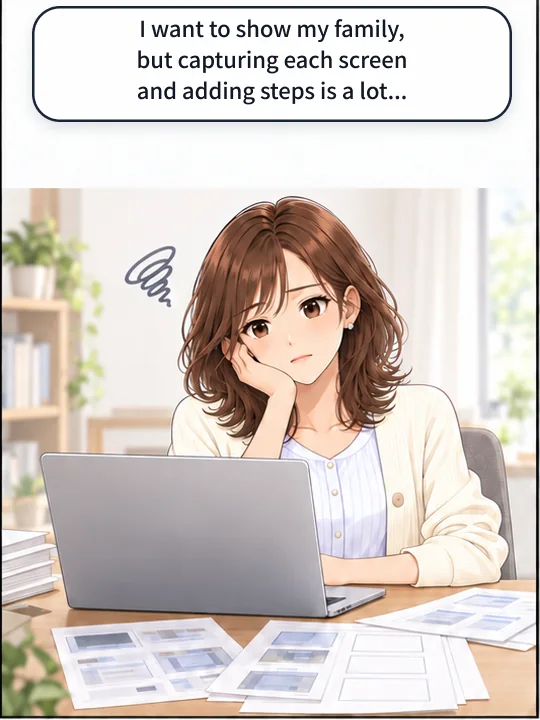
Say “Make a step guide.” From then on, every click you make is captured, numbered and captioned, and exported as one file.
Swipe sideways to see the next panels.
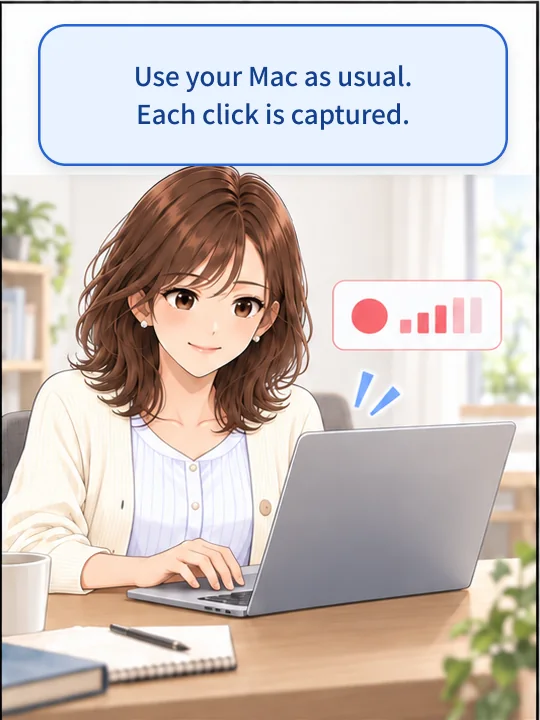
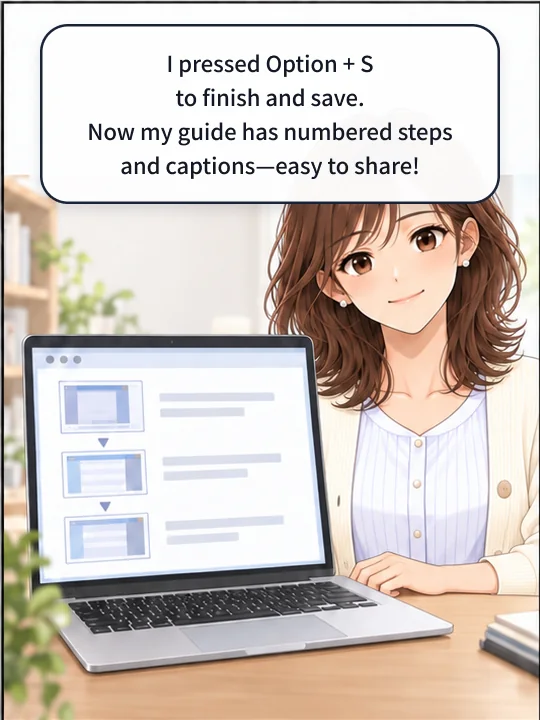
This needs Screen Recording permission. It still records without Accessibility permission, but when it cannot read the name of the thing you clicked, the caption becomes “Clicked”. Captions are built to a fixed pattern from the name of the thing you clicked. This is not a feature where an AI works out what you were doing and writes about it.
To finish, press Option + S or choose “■ Finish and Save the Step Guide” in the menu. The exported guide.html holds the images inside it, so that one file is all you have to send. The folder it is saved in is named with the Japanese word 手順書 (“step guide”) and the date and time. Slides pulled out of a video go in a folder named スライド (“slides”) in the same way.
Asking for blurring by voice does not blur a step-by-step guide. To blur one, turn on the setting “Always Blur Personal Information (Auto Blur)”. Everything is blurred together at export, and the window that asks you to check does not appear. Look at the guide yourself before you hand it to anyone.
Where your screenshots go
Nowhere. Listening to your voice, working out what you asked for, and deciding what to blur all run on your own Mac.
The app talks to our servers only when you press “Activate”, “Unregister This Mac…” or “Check for Updates”. From 2 November 2026, the app also sends one short notice the first time you open it on a Mac, and one more the first time you use it after 14 days without activating a license. All it contains is which app it is and which of the two moments it is (Privacy Policy). “Activate” sends your license key, a string that stands for this Mac (in a form that cannot be turned back), and the model name of the Mac (for example Mac15,3). “Check for Updates” sends neither your license key nor the version you are running: it reads a small file that says which version is being distributed, and the comparison happens on your Mac. Screenshots, the text on your screen and your voice are never sent, at any point.
There is one moment when the Mac goes online without you pressing anything. To turn speech into text, macOS downloads the speech model from Apple. Nothing is sent to us. Normally this happens only the first time you start the app.
Questions people ask
- Is there a monthly fee?
- No. You pay once, and there is nothing further to pay.
- How many Macs can I use it on?
- One license covers up to three Macs. When you stop using a Mac, open the app's settings on that Mac, go to “License” and press “Unregister This Mac…”. The seat comes back straight away.
- Can I try it before I buy?
- Yes. It is free for 14 days after you install it, before you buy, and every feature works. No license key is needed, and there is no payment method to register.
- Does it work without an internet connection?
- You need a connection once, at the start. That is macOS downloading the speech model from Apple, which is what turns your voice into text. Normally it happens the first time you start the app; if you are offline, it tries again each time you start until the model is in place. Once the model is there, you can use KoeShot offline. The app talks to our servers only when you press “Activate”, “Unregister This Mac…” or “Check for Updates”. It never checks in on its own. From 2 November 2026, the app also sends one short notice the first time you open it on a Mac, and one more the first time you use it after 14 days without activating a license. All it contains is which app it is and which of the two moments it is (Privacy Policy).
- Do updates cost extra?
- Updates within version 1, including the ones that keep up with new versions of macOS, are free. If there is ever a version 2 that is rebuilt from the ground up, we may charge for it separately.
- Do I get a receipt?
- Stripe emails you a receipt after your payment.
- Can I buy it from outside Japan?
- KoeShot is sold to people living in Japan, the United States, Canada, Australia, New Zealand, Singapore or Hong Kong, and to companies based in those places. We cannot sell it anywhere else. The price is in Japanese yen. If you choose a country outside Japan when you order, the checkout page is in English; if you choose Japan, it's in Japanese. Support is by email, in Japanese or English.
What’s new in 1.8.0
Released October 22, 2026.
- You can now choose KoeShot from AI features that control your Mac (Computer Use), such as Claude or ChatGPT (Codex). In Settings, go to “General” → “AI Control” and turn on “Show in the Dock so AI can control KoeShot.” KoeShot then appears in the Dock, and AI can choose it. It is off by default, so KoeShot stays out of the Dock as before. KoeShot itself does not send anything to the AI.
- Fixed: automatic pasting sometimes said it had sent the paste, but the screenshot didn’t appear in the Claude app.
Getting started
- Open the appAn icon appears in the menu bar. The first time, it asks for permission to use the microphone and to record the screen.
- Use it free for 14 days, before you buyNo license key is needed, and there is no payment method to register. Every feature works.
- To keep it, enter your keyIn the app's settings, under “License”, paste the key you were sent and press “Activate”.
We use these to confirm your order and to fill in the next screen (Stripe). Your license key is shown on the page that confirms your purchase. If you choose a country outside Japan, that screen is in English; if you choose Japan, it's in Japanese.
This email address already has a purchase
Ordering again would charge you twice, so we've stopped this one.
- Your license key is in the email we sent you when you bought KoeShot.
- Can't find it? Email wadadigitallab@gmail.com.
- Using it on a second or third Mac? Enter the same key — you don't need to buy again.
One-time purchase
- Every feature
- Up to three Macs
- Not a subscription
You can try it free for 14 days after you install it, before you buy. No license key is needed, and nothing is charged during those 14 days.
Before you download: KoeShot runs on a Mac with Apple silicon (M1 or later) and macOS 26 or later. On macOS 15 (Sequoia) or earlier, or on an Intel-based Mac, the app icon shows a crossed-out circle and the app won’t open.
The download is free (Download KoeShot).
If you choose a country outside Japan, the checkout page is in English.
Already using KoeShot? The latest version is 1.8.0 (October 22, 2026). See what’s new
Payment and refunds
- This is a one-time purchase. You pay once. There is no monthly fee and no recurring charge.
- The price is ¥3,980 including tax. Nothing else is charged to you on top of the price of the product.
- If you use a discount code, you are charged less than the price above. The amount after the discount is shown on the last screen before you confirm, and in the email you receive after your purchase.
- Payment is by credit card and similar methods, taken once, when you order.
- You can use it as soon as your order goes through — normally within a few minutes. Your license key is shown on the page that confirms your purchase.
- Because this is a download, orders cannot normally be refunded or returned once they go through. You can try it free for 14 days before you buy, so please make sure it works for you first (Refund and Cancellation Policy).
- If something is wrong with the product and the fault is ours, we deal with it case by case, following the Refund and Cancellation Policy. Who you are buying from, and what happens after you buy, is set out in Seller Information.
- If you live outside Japan. The words “orders cannot normally be refunded or returned once they go through” above do not narrow or cancel any right that the law of the country or region where you live gives you. In particular, the consumer guarantees under the Australian Consumer Law (if you live in Australia) and the guarantees under the Consumer Guarantees Act 1993 (if you live in New Zealand) cannot be excluded by anything we write. The same applies where you are a company or another organisation and the law of the country or region where you are located treats you as a consumer. What we do in those cases is set out in “5. If you live outside Japan” in the Refund and Cancellation Policy.
- This page is a description of the product, not the contract. The Terms of Service and the policies above are what you agree to.
Before you order
- System requirements: a Mac with Apple silicon (M1 or later) / macOS 26 or later. Intel-based Macs and macOS 15 (Sequoia) or earlier are not supported. macOS running inside a virtual machine (Parallels Desktop, UTM and the like) is not supported. You can check your own Mac from the Apple menu in the top left corner, under About This Mac.
- KoeShot needs permission to use the microphone and to record the screen (System Settings → Privacy & Security). After you allow screen recording, quit KoeShot and start it again.
- One license covers up to three Macs. When you stop using a Mac, open the app's settings on it, go to “License” and press “Unregister This Mac…”; the seat comes back.
- KoeShot works in English and Japanese. It follows your Mac's language, and you speak to it in that language. On a Mac set to English, you speak English.
- By ordering, you agree to the Terms of Service.
- Listening to your voice and working out what you asked for both happen entirely on your Mac. Your voice, your screenshots and the text on your screen are never sent anywhere. The app talks to our servers only when you press “Activate”, “Unregister This Mac…” or “Check for Updates”. From 2 November 2026, the app also sends one short notice the first time you open it on a Mac, and one more the first time you use it after 14 days without activating a license. All it contains is which app it is and which of the two moments it is (Privacy Policy). On top of that, only the first time you start it, macOS downloads the speech model from Apple so that your voice can be turned into text. Nothing is sent to us.
¥3,980 including tax, paid once / up to three Macs / no monthly fee